API Documentation
Build next-generation image editing applications with our text-to-mask segmentation API.
/v1/groundText Grounding
Segment objects by describing them in natural language. Returns instance masks, bounding boxes (xyxy), and confidence scores for all matching objects. Example: text="cat" finds and segments all cats.
Parameters
The image to process (JPEG/PNG/WEBP).
Text description of target objects. Example: "red car", "person", "door handle".
Confidence threshold for instance detection (default: 0.5).
Mask binarization threshold (default: 0.5).
import requests

url = "https://your-api.com/v1/ground"
headers = { "X-API-Key": "YOUR_API_KEY" }
files = { "file": open("image.jpg", "rb") }
data = {
    "text": "coffee",
    "threshold": "0.3",
    "mask_threshold": "0.5"
}

response = requests.post(url, headers=headers, files=files, data=data)
result = response.json()['output']

print(f"Found {result['num_instances']} instances")
for i, box in enumerate(result['boxes']):
    print(f"  Instance {i}: box={box}, score={result['scores'][i]:.2f}")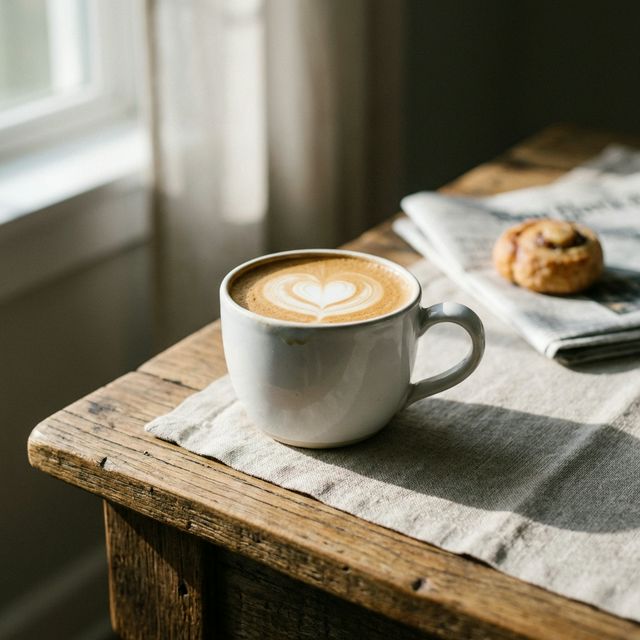
Response Structure
Ground / Segmentation Response
{
  "status": "COMPLETED",
  "output": {
    "masks_b64": [                  // Array of Base64 encoded PNG masks
      "iVBORw0KGgo...",
      "iVBORw0KGgo..."
    ],
    "boxes": [                      // Array of [x1, y1, x2, y2] pixel coordinates
      [120.5, 80.3, 450.2, 380.1],
      [500.0, 100.0, 800.0, 600.0]
    ],
    "scores": [0.95, 0.87],         // Confidence score per detected instance
    "num_instances": 2              // Total objects segmented
  }
}
Post-Processing Best Practices
Our API returns binary masks as Base64-encoded PNGs. To use these in professional workflows (annotations, design tools, or composite imaging), follow these recipes:
Technique: Alpha Overlay (Visualization)
To visualize segmentation results, blend the binary mask with your original image using a color overlay. This is primarily used for frontend feedback and confirmation.
Python (OpenCV + PIL)
import cv2, numpy as np
from PIL import Image

# 1. Decode mask to binary numpy array
mask_bytes = base64.b64decode(data['output']['masks_b64'][0])
mask = np.array(Image.open(io.BytesIO(mask_bytes))) # 0 or 255

# 2. Create colored overlay (e.g. Blue)
overlay = np.zeros((*mask.shape, 3), dtype=np.uint8)
overlay[mask > 0] = [255, 0, 0] # BGR color

# 3. Blend with original image
original = cv2.imread("image.jpg")
alpha = 0.5
output = cv2.addWeighted(original, 1, overlay, alpha, 0)
cv2.imwrite("overlay.jpg", output)
JavaScript (Canvas API)
const ctx = canvas.getContext('2d');
// 1. Draw original image first
ctx.drawImage(originalImage, 0, 0);

// 2. Setup semi-transparent mask
ctx.globalAlpha = 0.5;
ctx.fillStyle = '#3b82f6'; // Blue

// 3. Use mask as an Alpha Map
const maskImg = new Image();
maskImg.src = `data:image/png;base64,${maskB64}`;
maskImg.onload = () => {
    ctx.drawImage(maskImg, 0, 0); // Draws color only where mask is white
};Technique: Mask to Polygons (Vectorization)
Convert raster masks into vector polygons (ordered list of points). This is essential for saving segmentation results in standard formats like MS COCO or for use in design tools like Figma/Illustrator.
Python (OpenCV)
# Find contours in the binary mask
contours, _ = cv2.findContours(mask, cv2.RETR_EXTERNAL, cv2.CHAIN_APPROX_SIMPLE)

polygons = []
for cnt in contours:
    # Simplify polygon (epsilon = 1% of arc length)
    epsilon = 0.01 * cv2.arcLength(cnt, True)
    approx = cv2.approxPolyDP(cnt, epsilon, True)
    polygons.append(approx.reshape(-1, 2).tolist())

# "polygons" is now a JSON-serializable list of [x, y] coordinatesTechnique: Background Removal
Isolate the object from the background by using the mask as an alpha channel. This produces a transparent PNG of just the segmented object.
Python (PIL)
from PIL import Image

# 1. Open original and mask
img = Image.open("original.jpg").convert("RGBA")
mask = Image.open(io.BytesIO(base64.b64decode(mask_b64))).convert("L")

# 2. Put mask into Alpha channel
img.putalpha(mask)

# 3. Save as transparent PNG
img.save("extracted_object.png")